Hardware Prerequisites
These are the minimum system requirements your PC must meet to help enable a great computing experience:
- Processors/CPUs (Central Processing Units): 1 Ghz or faster with 2 or more cores and appearing on our list of approved CPUs. The processor in your PC will be a main determining factor for running Windows 11. The clock speed (the 1 Ghz or faster requirement) and number of cores (2 or more) are inherent to the processor design as it was manufactured and are not considered upgradable components.
- RAM: 4 GB.
- Storage: 64 GB
- System Firmware: UEFI (for Unified Extensible Firmware Interface, a modern version of the PC BIOS) and Secure Boot capable.
- TPM: Trusted Platform Module (TPM) version 2.0.
- Graphics Card: Compatible with DirectX 12 or later with WDDM 2.0 driver.
Intune Prerequisites
- Licenses: To create and target a feature update for the 24H2 upgrade, an Intune license is required. Refer to the information on necessary subscriptions for deploying feature updates in Intune.
- Enrollment: The device must be enrolled in Intune MDM and should either be Hybrid AD joined or Microsoft Entra joined.
- Telemetry: Devices targeted for the 24H2 upgrade must have telemetry enabled, with a minimum setting of “Required.”
- Device Editions: Feature update deployment is supported on Windows 10/11 devices running the following editions:
- Pro
- Enterprise
- Education
- Pro for Workstations
- Licenses: Your organization must have one of the following subscriptions, which include a license for the Windows Update for Business deployment service:
- Windows 10/11 Enterprise E3 or E5 (included in Microsoft 365 F3, E3, or E5)
- Windows 10/11 Education A3 or A5 (included in Microsoft 365 A3 or A5)
- Windows Virtual Desktop Access E3 or E5
- Microsoft 365 Business Premium
- The Microsoft Account Sign-In Assistant (wlidsvc) service must be enabled to install feature updates. If this service is blocked or disabled, the Windows 11 24H2 upgrade will fail. By default, the service is set to “Manual (Trigger Start),” allowing it to run as needed.
Steps to upgrade to Windows 11 24H2
Step 1 : Create a feature update policy
The first step in deploying the Windows 11 24H2 update is to create a feature update policy in Intune. To do this, log into the Microsoft Intune admin center and navigate to Devices > By platform > Windows > Manage updates > Windows 10 and later updates. Then, go to the Feature updates tab and click on Create profile.

Step 2 : Configure the update policy
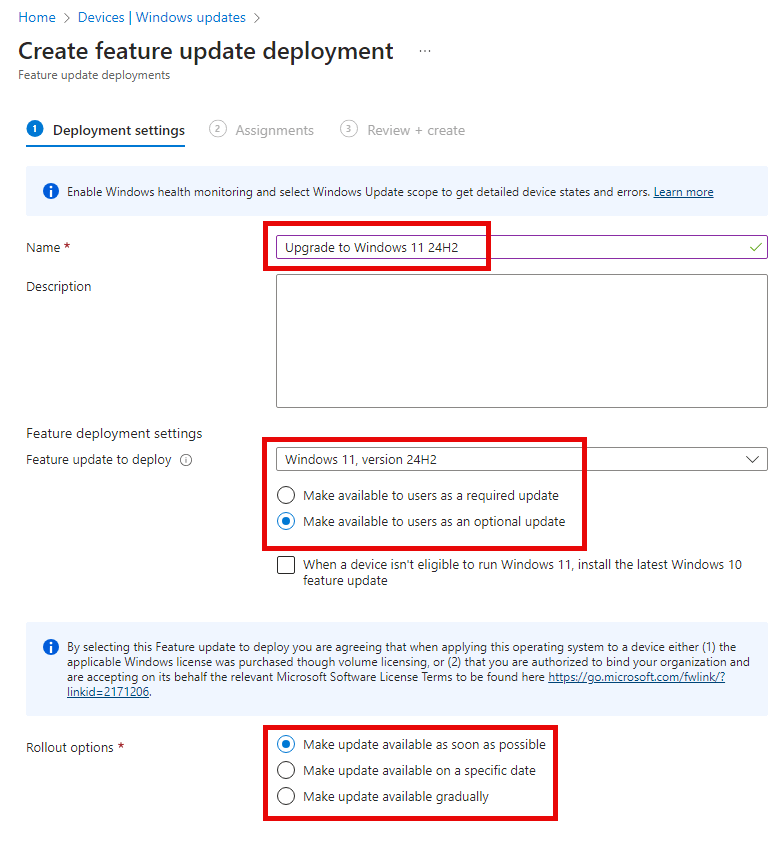
On the Deployment settings page, provide a clear name and description for the policy. For example:
- Name: Upgrade to Windows 11 24H2
- Description: A deployment profile for upgrading your Windows 11 devices to version 24H2.
Next, specify the feature update version you want the devices to run. Select Windows 11, version 24H2 from the drop-down menu for the feature update to deploy.
After selecting the appropriate Windows 11 version, decide how to make the update available to users. Intune offers two options for deploying feature updates:
- Optional update: Users must go to the Windows update settings page, locate the Windows 11 24H2 update, and click Download to install it.
- Required update: The 24H2 update will be automatically installed the next time the device checks for updates, treating it as a mandatory update.
In this example, the Windows 11 24H2 update is deployed as an optional update for users.
Step 3 : Upgrade deployment options
With rollout options, administrators can control when Windows Updates makes the update available to devices receiving this policy. This is a crucial step in the update deployment process and should be configured based on business needs.
There are three available rollout options:
- Make update available as soon as possible: This option releases the update to devices immediately, with no delay. It’s useful when testing the Windows 11 24H2 upgrades on a pilot group of devices in Intune.
- Make update available on a specific date: Administrators can select a specific date for the 24H2 update to become available. The update won’t be offered to devices until the chosen date is reached.
- Make update available gradually: This option allows for a phased rollout of the Windows 11 24H2 update, distributing it to devices in groups (offer groups) over a set period. This can help reduce network impact compared to offering the update to all devices simultaneously.
For testing purposes, I configured the rollout to make the update available immediately. Click Next to proceed.
On the Assignments page, click Add groups to include, then assign the feature update deployment to one or more device groups. Click Next to proceed.

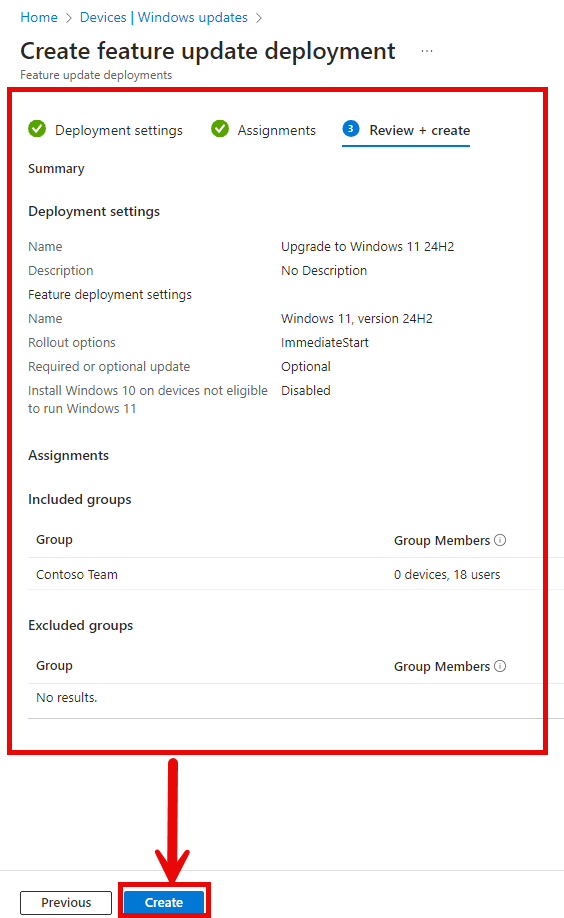
In the Review + create section, review the settings. Once you’re ready to save the feature update policy, click Create.
Step 4 : Upgrade deployment on device
Once the feature update deployment policy is assigned to the device groups, the devices will receive the policy during their next sync with Intune. To speed up this process, you can manually sync Intune policies on Windows devices.
To test the upgrade, I signed into a Windows 11 device running version 23H2. Before the 24H2 update appeared, I had to manually trigger Check for Updates, which forces the device to check for the latest Windows updates.
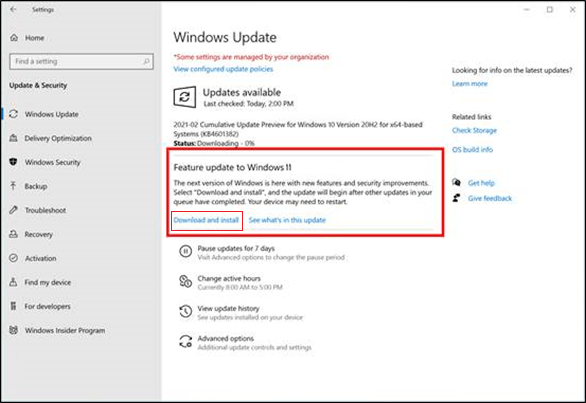
Once the upgrade is installed you must reboot the device and wait until the process complete after the reboot.
The guide for upgrading Windows 10 to Windows 11 24H2 is done, hope it helps.


 All Intune
Leave a comment